Step 3: Select Repositories and Images
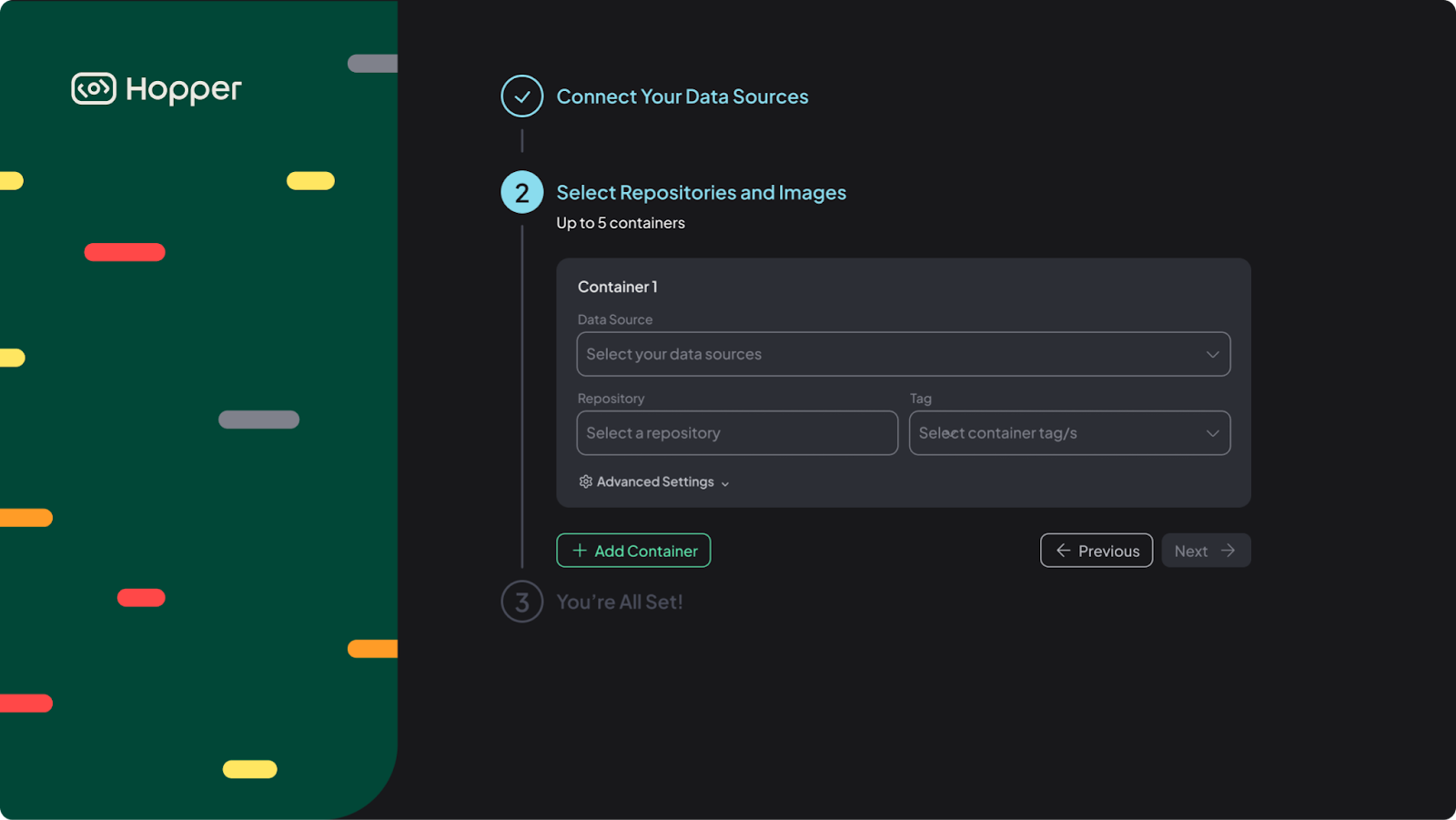
In order to scan your containers, you need to select repositories and tags from your registry. You can choose up to 5 containers.
ECR & GitLab
- Select Data Source from dropdown
- Select Repository & Tag from dropdown list
- Click Next to save your container
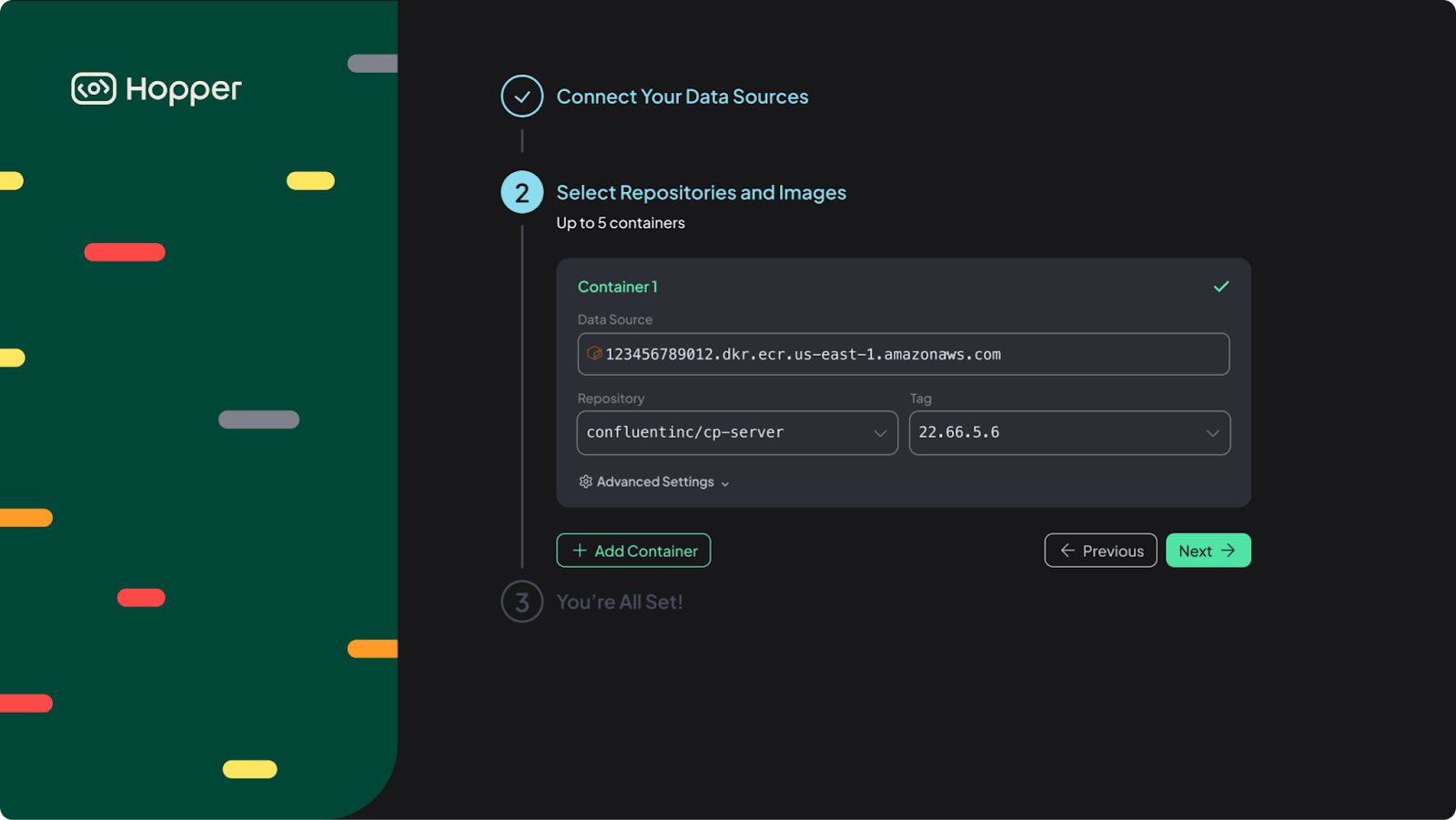
Please Note: If you want to add more than one container, click on Add Container and repeat the steps above.
Custom Registry
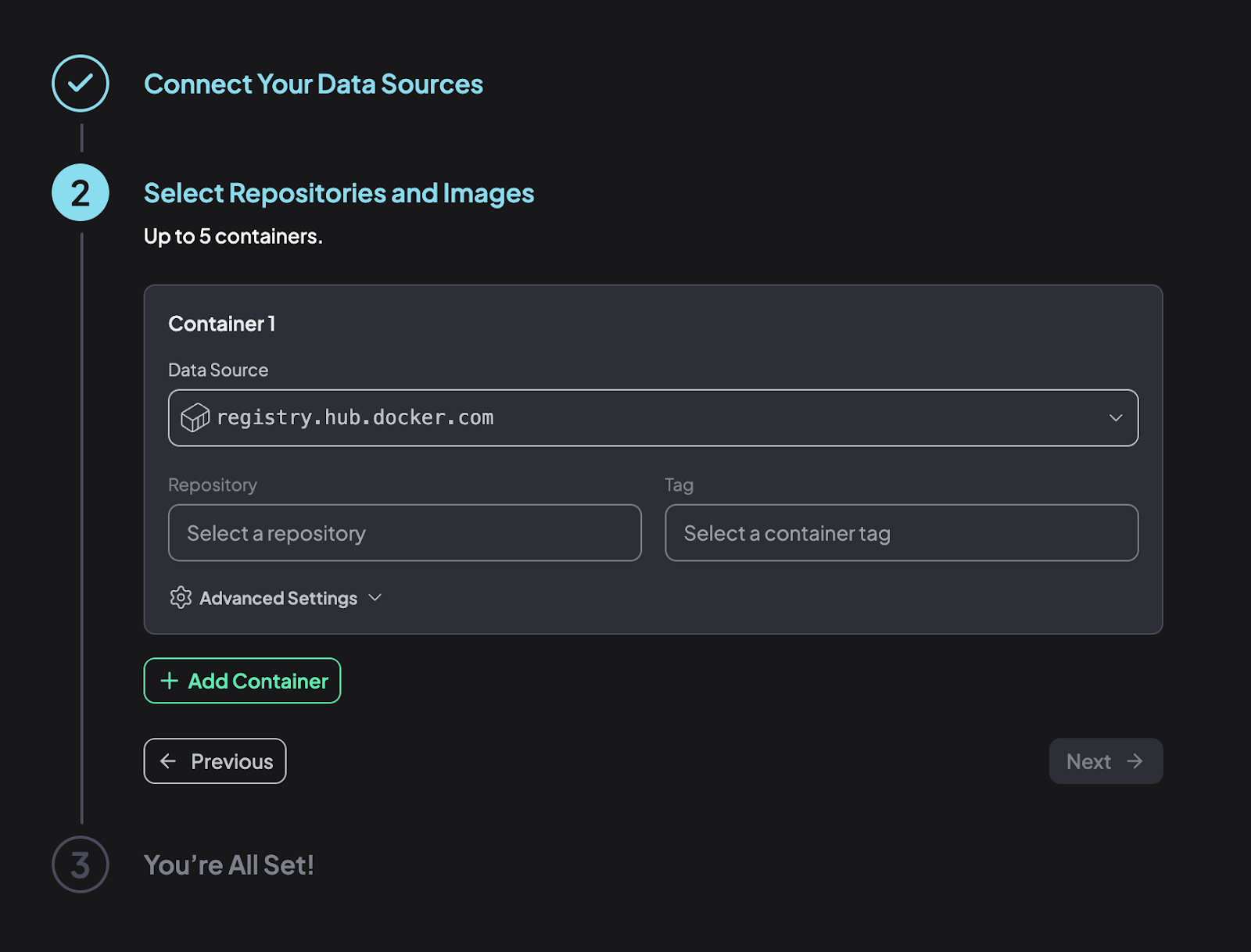
For custom integration, you’ll need to manually enter the repository and image tag you’d wish to analyze.
The Hopper app expects them to be entered by selecting the Data Source, Repository, and Tag.
Data Source
Select the Docker Hub registry you’ve just connected.
Repository and Tag
1. In Docker Hub, select the repository you wish to analyze:
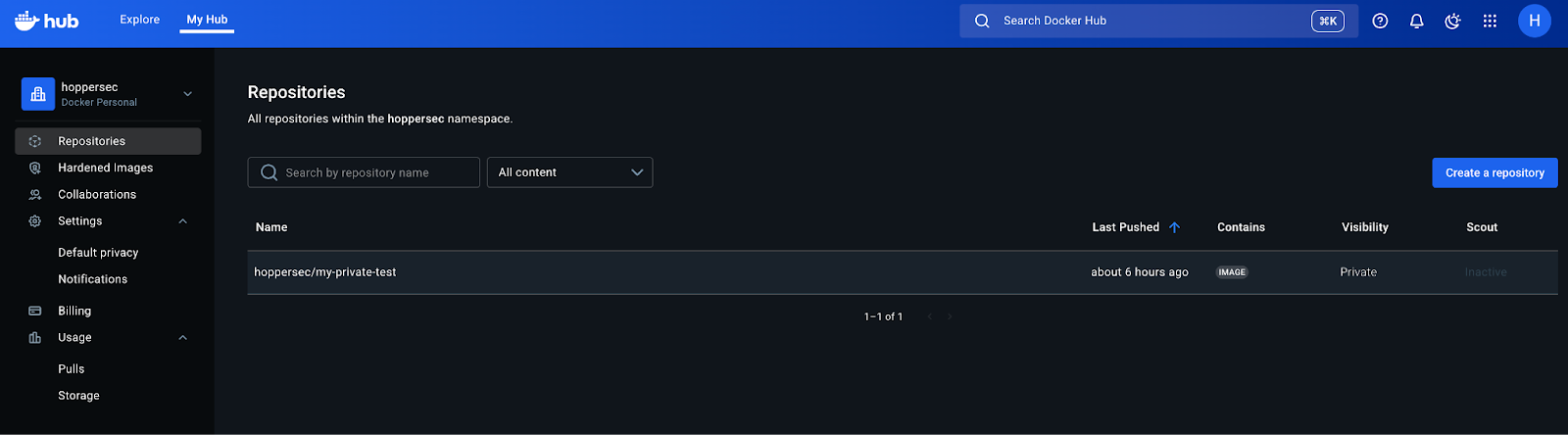
2. Choose the Tags tab.
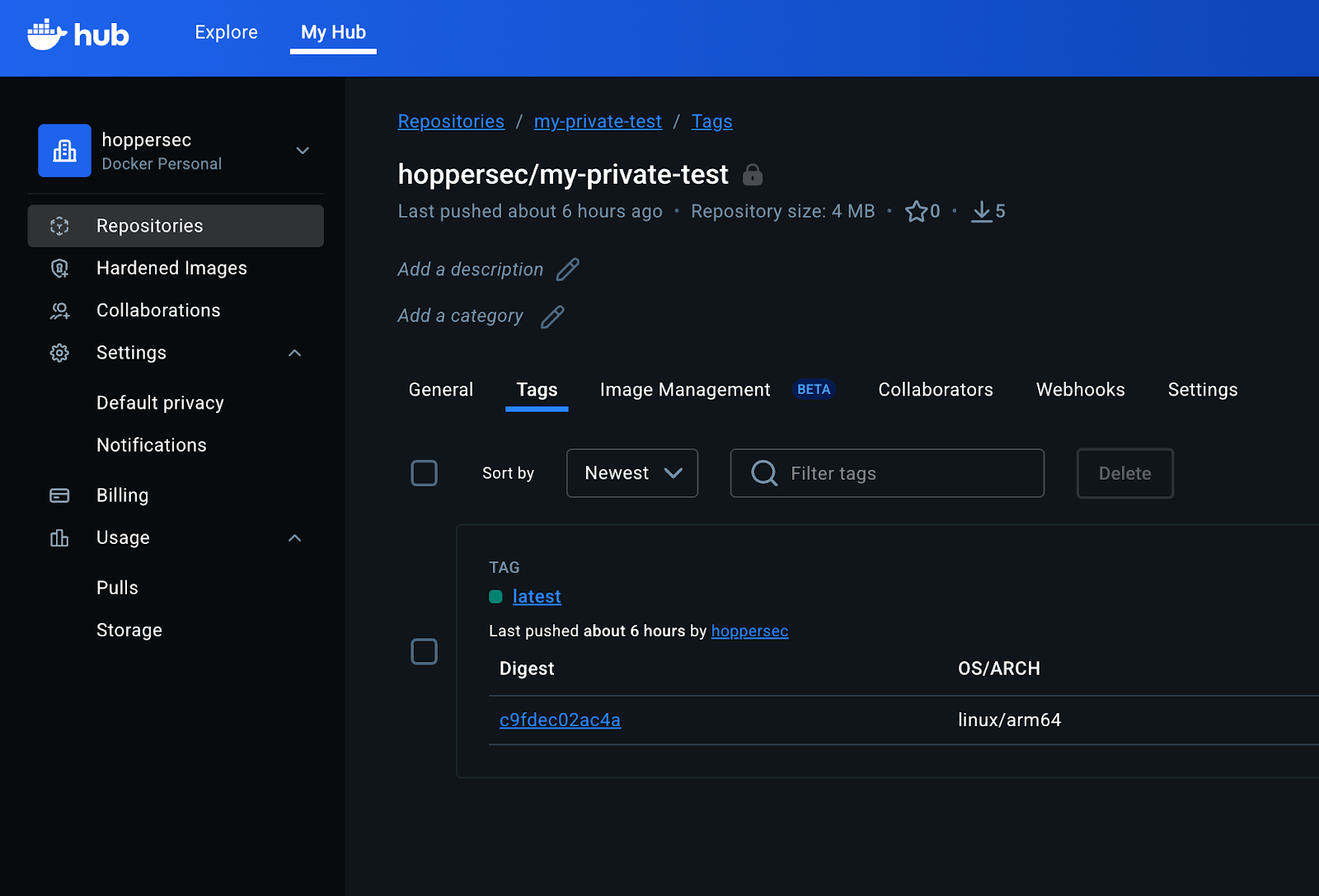
3. In the Hopper app, enter the name of the repository (the title of your repository page), and the tag to analyze from the tag list.
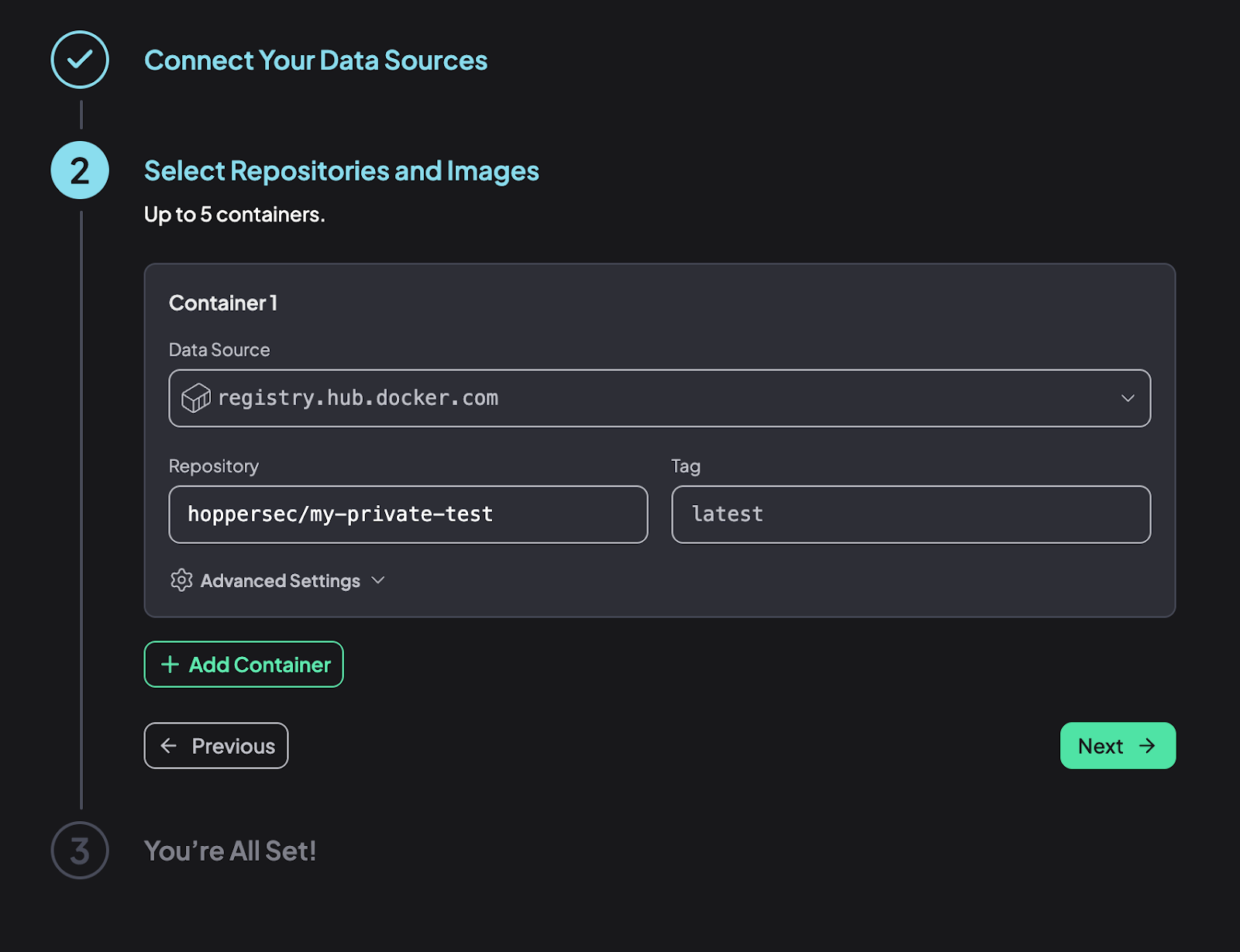
4. Click Next
Scan Your Containers
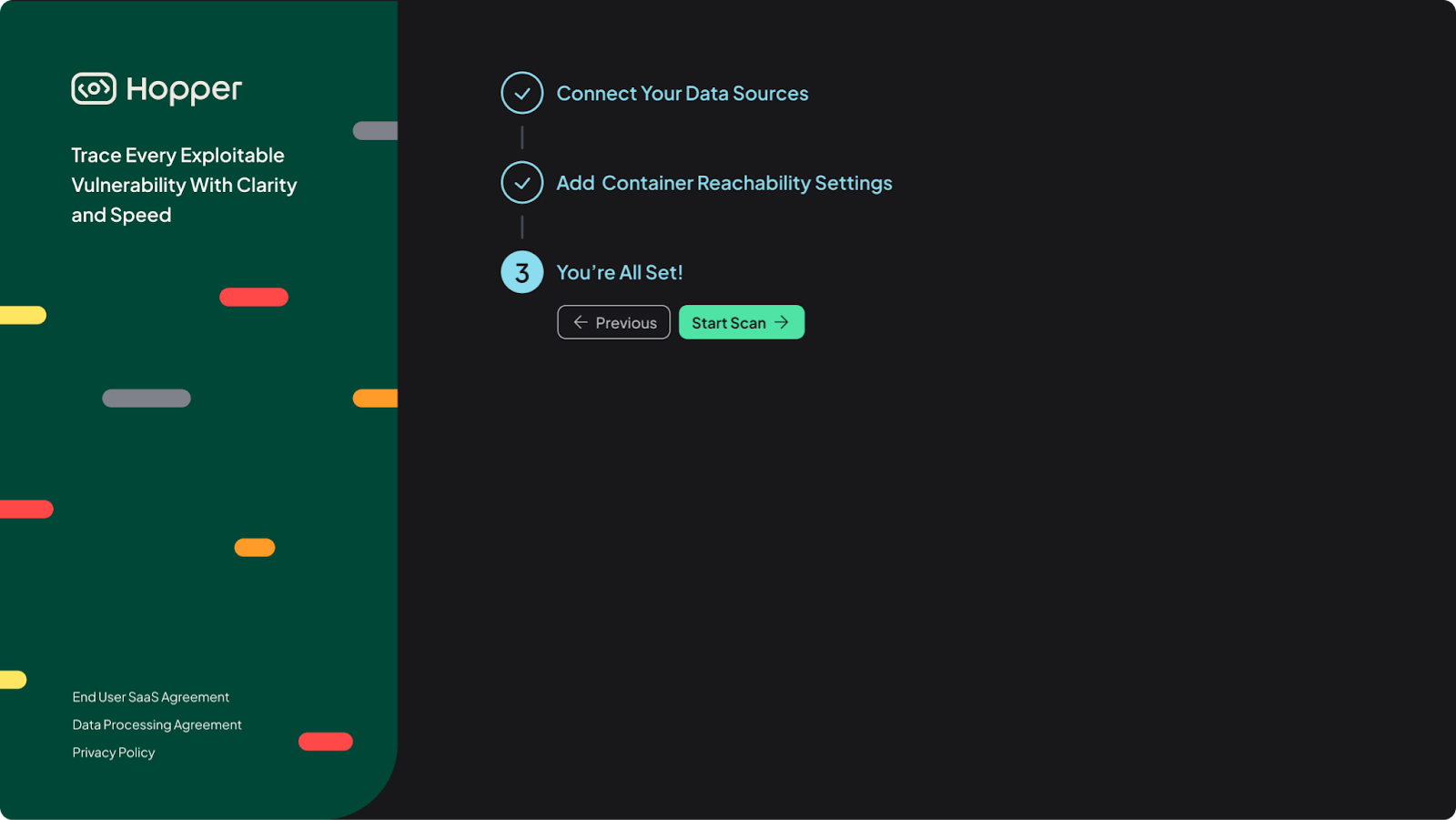
Click Start Scan and you are all set!